Import your supplier list from a spreadsheet, with column mapping and a preview
Certly takes your supplier list straight from a spreadsheet: export the sheet as CSV, open Import from spreadsheet on the Suppliers screen, map your columns to Certly's fields and read the preview before anything is saved. A hundred suppliers arrive as a hundred records with their contacts and required certificate types, instead of a hundred trips through the add-a-supplier form.
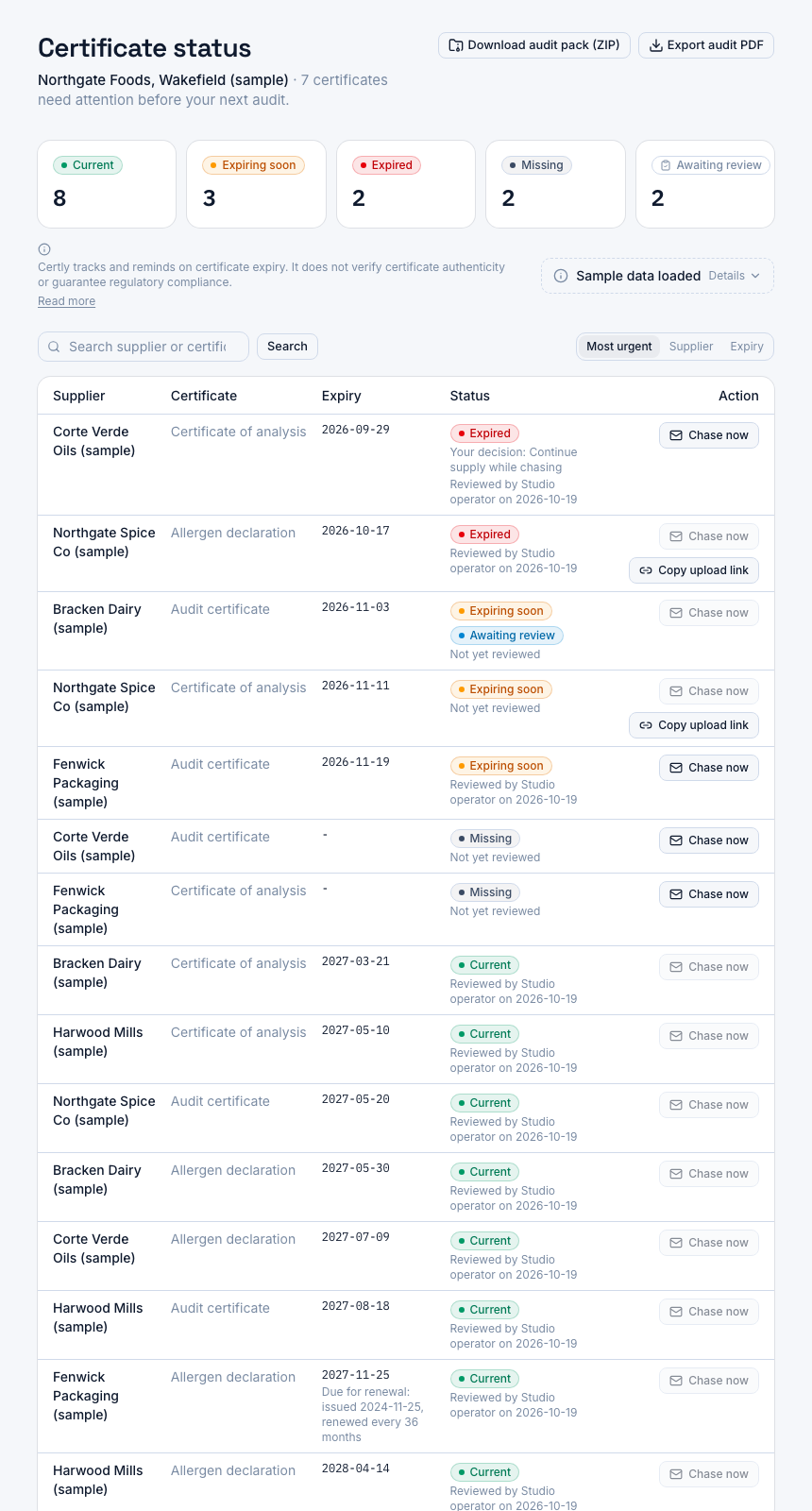
A screenshot of Certly, showing sample data. Nothing in it is a promise: what the product does is what this page says in words.
The spreadsheet is the real starting line
The list already exists. It is a sheet called something close to supplier tracker, one row per supplier, a column for each document, the cell filled with the date printed on the form and coloured green while it is current. One person in QA maintains it, usually the person reading this, because the ERP will not hold documents and procurement has never taken the job on.
That sheet is also why most certificate tracking tools never get past evaluation. A plant with fifty suppliers and three required documents each is looking at fifty passes through a single-supplier form before any status screen is worth opening, and a plant with more than a hundred suppliers is looking at an afternoon it does not have inside a fourteen-day trial. The typing gets deferred to next week, the trial lapses, and the sheet carries on being the system of record.
So the import is not a convenience here. It is the step between a tool you are trying and a tool that holds your approved supplier list, and it is the reason the rest of the product is ever reached.
How the import works
- Export the sheet as CSV
In Excel, Save as, CSV. In Google Sheets, download as CSV. You do not need to rename headings, reorder columns or delete the ones Certly has no use for.
- Open Import from spreadsheet on the Suppliers screen
The button sits with the supplier list and opens the import route. Choose the CSV file you just exported.
- Map your columns to Certly's fields
Point your columns at the fields a supplier record holds: supplier name, contact name, contact email, contact phone, and which certificate types that supplier has to supply. Columns you do not map are simply left out.
- Read the preview
Before anything is written, the preview shows what each row becomes as a supplier record. If a column is pointed at the wrong field, the preview is where you see it, not the dashboard a week later.
- Confirm, and the list is live
The rows land in the supplier database as suppliers with their contact details and required certificate types. From there each one can be edited like any supplier you added by hand.
What your columns become
| Column in your sheet | Field in Certly | What it is for |
|---|---|---|
| Supplier, vendor, approved supplier | Supplier name | Names the record and how it reads in the supplier list |
| Contact, QA contact, who to ask | Contact name | The person at the supplier the record is held against |
| Email, contact email | Contact email | The address kept with that supplier's record |
| Phone, tel | Contact phone | Kept with the contact, so you are not back in the sheet looking for a number |
| Allergen, CoA, BRC or audit certificate columns | Required certificate types | Marks which of allergen declaration, CoA and audit certificate this supplier has to supply |
| Spend, category, internal notes | Not mapped | Left in the spreadsheet, because the supplier record does not hold it |
Before you open the import
A pass over the sheet first makes the mapping obvious rather than approximate.
- One row per supplier. The import reads your file a row at a time, so a supplier that currently occupies three rows, one per document, is clearer collapsed into a single row with the document columns beside it.
- Decide the required types per supplier. Not every supplier owes you all three documents. A packaging supplier and an ingredient supplier rarely carry the same list.
- Check your row count against your plan. Starter holds 50 suppliers, Professional 200 and Unlimited has no cap, all on one site.
- Tidy the contact column. A supplier record with no contact email is still a record, but it is a record nobody can be asked anything through.
The colour coding does not travel, and it does not need to. What the colours stood for, which documents are current and which are not, is what the product computes from the dates on the certificates themselves.
What the import changes
The whole list is in on day one
Every plan starts with a 14-day free trial. An import means the first day ends with your real supplier list in place, not three test suppliers that prove nothing about your plant.
Mapping, so you do not reshape the sheet first
Your headings stay as they are. You tell Certly which column is which once, rather than rebuilding a file to match somebody else's template.
A preview before anything is written
You see what each row will become while the supplier database is still untouched. Mapping errors are caught in the one place they are cheap to catch.
Required documents named per supplier
The import carries across which of allergen declaration, CoA and audit certificate each supplier owes you, so the record states the obligation rather than just the name.
Sized for the list you actually have
50 suppliers on Starter at £149 a month, 200 on Professional at £249, no cap on Unlimited at £399, each with a 14-day free trial and 15% off if you buy the year up front.
Questions
What file does the import accept?
A CSV file. Save or download your supplier tracker as CSV from Excel or Google Sheets and choose that file in the import. The workbook's formatting, formulas and colour fills are not part of what moves across.
Do I have to rename my columns to match Certly?
No. The mapping step exists so your headings can stay as your plant wrote them. You choose which of your columns is the supplier name, the contact name, the email, the phone and the required certificate types, and leave the rest unmapped.
What if a row is wrong?
The preview shows what each row becomes before anything is saved, so a mis-pointed column shows up there. After the import, suppliers can be edited individually in the supplier database. Field-level checks on supplier and certificate entry are covered on their own page in this section.
Does the import bring my expiry dates across?
The import's job is the list itself: who the suppliers are, who to contact and which certificate types each one must supply. Expiry dates belong to the certificate records rather than the supplier row, so treat the import as the step that makes the list real, then work through the documents.
How many suppliers can I import?
Up to the supplier limit on your plan: 50 on Starter, 200 on Professional, uncapped on Unlimited. Every plan covers one site. If your sheet runs past 200 rows, start on Unlimited rather than importing twice.
What does Certly store once the import is done?
Supplier company names, contact names, contact email addresses and contact phone numbers, held in the product's own database on Amazon Web Services, plus certificate documents when they are added. A supplier contact's name, email and phone can be erased on their own from that supplier's page, and deleting your account removes everything at once.
Can I still add a supplier by hand afterwards?
Yes. The supplier database takes add and edit at any time, so a new approval next month is one form, and the import is there for the day you arrive carrying the whole list.