Reviewing a supplier self-upload before you trust the row
When a supplier uploads a certificate through their own no-login link, Certly stores it against that supplier and the certificate type you asked for, with its issue and expiry dates, and the dashboard row moves to the state those dates give it.
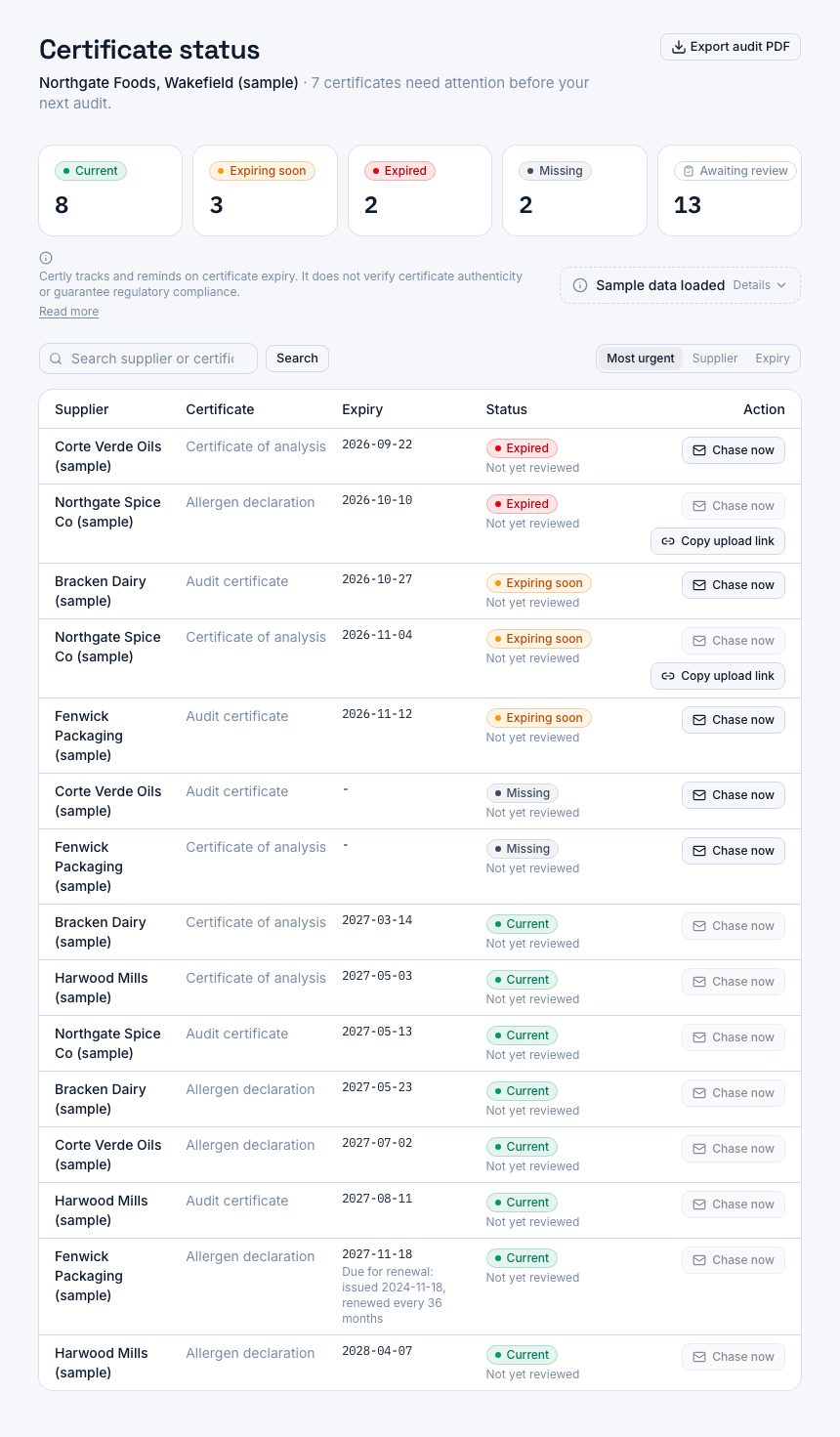
A screenshot of Certly, showing sample data. Nothing in it is a promise: what the product does is what this page says in words.
Where a supplier self-upload lands
The upload link exists because the chasing is the hard part. Certly emails the supplier contact when a certificate is approaching expiry or has lapsed, with a one-click upload link that is single-use and expires, and the supplier uploads the document without an account and without a password. The file is stored against that supplier and that certificate type, with the issue and expiry dates recorded, and the audit dashboard reads the slot as current, expiring soon, expired or missing from the recorded expiry date. Alerts run at 90, 60 and 30 days before that date, and you can change those thresholds per certificate type or set a plant-wide default.
That is the collection half of the job, and it is the half a spreadsheet cannot do on its own. The other half has not changed: somebody in QA opens the file. Suppliers send the wrong thing often enough to plan for it, an IFS certificate where you asked for BRC, a scan of last year's allergen declaration, a certificate of analysis for a different batch. That is not bad faith, it is a busy person answering an email with the nearest file to hand, and the question of how to tell a genuine, current certificate from a near miss is one QA practitioners put to each other regularly.
So it is worth being exact about what the status on the screen means. Certly tracks and reminds on certificate expiry. It does not verify certificate authenticity or guarantee regulatory compliance, and both the dashboard and the PDF export carry that line. A date engine can tell you a document runs out in March. Only a person can tell you it is the wrong document.
How a self-upload gets reviewed
- The chase goes out with the upload link in it
Certly emails the supplier contact for a certificate approaching expiry or already lapsed, with a one-click upload link, and logs every send so you can see what left and when.
- The supplier uploads without an account
The link is single-use and expires, there is no login and nothing for the supplier to create. They send a PDF, PNG or JPEG.
- The slot changes state on the dashboard
Once a file and its dates are on the record, the row reads current, expiring soon or expired by the recorded expiry date instead of missing. That change is your cue that something arrived and wants opening.
- You open the file and check it against what you asked for
The right scheme, the right site, the right batch, and the dates printed on the document rather than the dates somebody typed. This is the step that was always in the job and never in the software.
- If the wrong document arrived, set the slot straight
Your QA team can upload the correct file against that supplier and certificate type and record the dates printed on it, and the status and the 90, 60 and 30 day alerts follow the corrected date. While the slot is expired or approaching expiry, the chase sequence keeps working it.
- The version it replaced stays on file
A renewal never deletes the document it replaces. Superseded certificates are kept with their dates while the account is open, so an auditor asking which allergen declaration was valid in March has an answer.
What this gives the person doing the checking
Collection is automated, the judgement stays human
The product takes the email chasing, the link minting and the date arithmetic. It leaves the one step a QA manager would never want delegated to a scheduler, which is deciding whether the document in front of them is the document the standard asks for.
The dates decide when you look
Expiry tracking runs from the date recorded on each certificate, with alerts at 90, 60 and 30 days before it and thresholds you can change per certificate type, so the reason you open a file is a reminder rather than a sweep through folders.
One screen says where to look
The audit dashboard shows current, expiring soon, expired or missing per supplier and certificate type, which turns a review session into a short list rather than a full re-read of the supplier base.
The chase log shows what was actually sent
Every chase email is logged with its recipient, the time it was sent, the delivery result and opens, so you can tell a supplier who ignored you from a supplier who never received the request.
The status view exports for the auditor
The dashboard exports as a PDF for auditor review, carrying the same four states and the same two-sentence note that the product tracks and reminds rather than verifies.
Who does what in the check
| Part of the check | Certly | Your QA team |
|---|---|---|
| Getting the document out of the supplier | Chase emails to the supplier contact with a one-click upload link, logged per send | Decides who the contact is and which certificate types each supplier must hold |
| Storing what arrives | Holds the file against the supplier and certificate type, including the version a renewal replaces | Uploads anything that comes in outside the link, by email or on paper |
| Working out the status | Computes current, expiring soon, expired or missing from the recorded expiry date, and alerts at 90, 60 and 30 days | Records the issue and expiry dates printed on the document |
| Judging the document itself | Nothing: there is no authenticity check and no reading of the document | Opens the file and checks the scheme, the site, the batch and the dates |
| Showing an auditor | PDF export of the status view with the tracking and reminder note on it | Answers the questions that view prompts, with the stored documents behind it |
Making the review a habit rather than a scramble
Three things make this work in practice, and all of them are setup you do once.
First, record the certificate types each supplier is required to hold, allergen declaration, certificate of analysis, audit certificate. A type you have not asked for cannot read as missing, and missing is the state that tells you a document has never arrived at all.
Second, set the alert thresholds you will actually act on. The 90, 60 and 30 day pattern suits an annual audit certificate; a document you renew more often can have its own timing per certificate type, otherwise the first reminder lands before anyone can do anything with it.
Third, make opening the file part of the same sitting as reading the alert. A QA team tracking this on a spreadsheet already opens every document, because the printed date is what goes in the cell, and that habit is worth keeping once the dates stop being manual. It is the step that catches the IFS certificate sent in place of the BRC one. The page on the four certificate states explains what each status does and does not assert, and the chase log page covers how to tell a delivery problem from a silent supplier.
All three plans include the no-login supplier upload links, the audit dashboard and the PDF export: Starter at £149 a month for up to 50 suppliers, Professional at £249 for up to 200, Unlimited at £399 with no cap. Each starts with a 14-day free trial, so the first fortnight is a fair test of whether the chasing and the reviewing split the way this page describes.
Questions
How do I know a supplier has uploaded something?
The slot changes state on the audit dashboard. A row that read missing or expired reads current, or expiring soon, once a file and its issue and expiry dates are on the record. The per-supplier chase history also shows which chase emails went out, when, and whether they were delivered or opened, so you can see the request and the response side by side.
Does Certly check that the certificate is genuine or the right scheme?
No. It tracks and reminds on certificate expiry, and it does not verify certificate authenticity or guarantee regulatory compliance. That note sits on the dashboard and on the PDF export so nobody reading either one mistakes a green status for a verified document. Checking the scheme, the site and the printed dates is QA's step.
A supplier sent the wrong document. What do I do?
Ask them again, and upload the correct file yourself against that supplier and certificate type when it arrives, recording the dates printed on it. The status and the 90, 60 and 30 day alerts then follow the corrected expiry date, and while the slot is expired or approaching expiry the automated chase sequence keeps working it.
Does a renewal overwrite the certificate it replaces?
No. Versions replaced by a renewal are kept with their dates while the account is open, because that trail is what an auditor asks for when the question is which document was valid on a past date.
What can a supplier send through the upload link?
PDF, PNG or JPEG. The link needs no login and no password, it is single-use and it expires on its own, so a forwarded link does not leave a way in later.
Which plans include supplier upload links?
All of them. Starter is £149 a month for a single site and up to 50 suppliers, Professional is £249 a month for up to 200, and Unlimited is £399 a month with no supplier cap. Annual billing is available on each at 15% less than paying monthly, and every plan starts with a 14-day free trial.